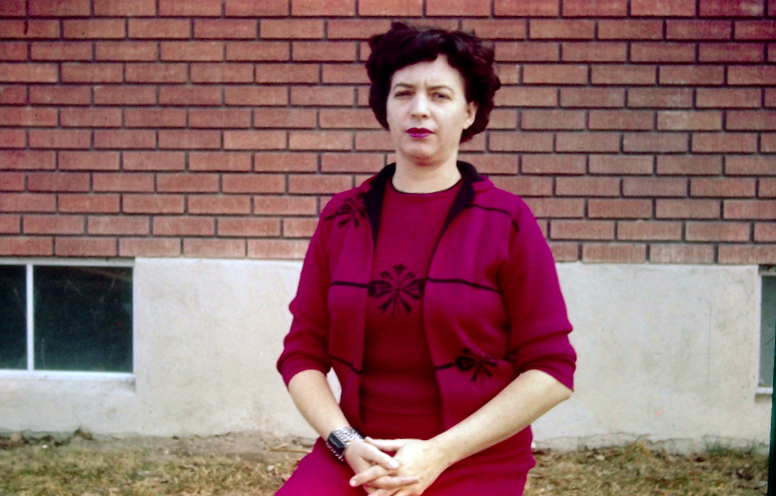
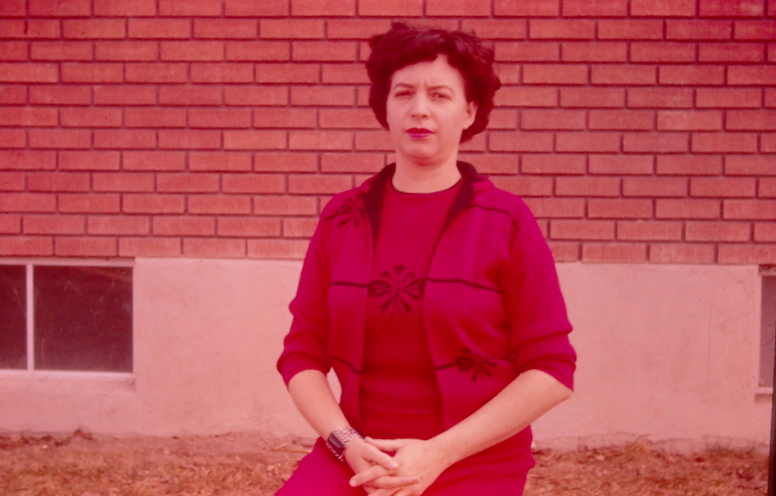
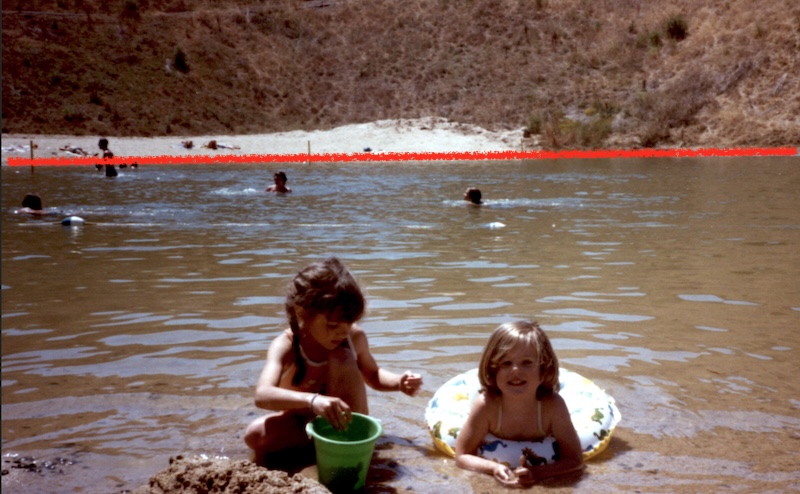

There are times when you need to shrink the size of an image, such as to upload to FamilySearch, where the image has to be less than 15mb in size. Or perhaps you scanned your images at too high of a DPI scanner setting and they are huge in size.
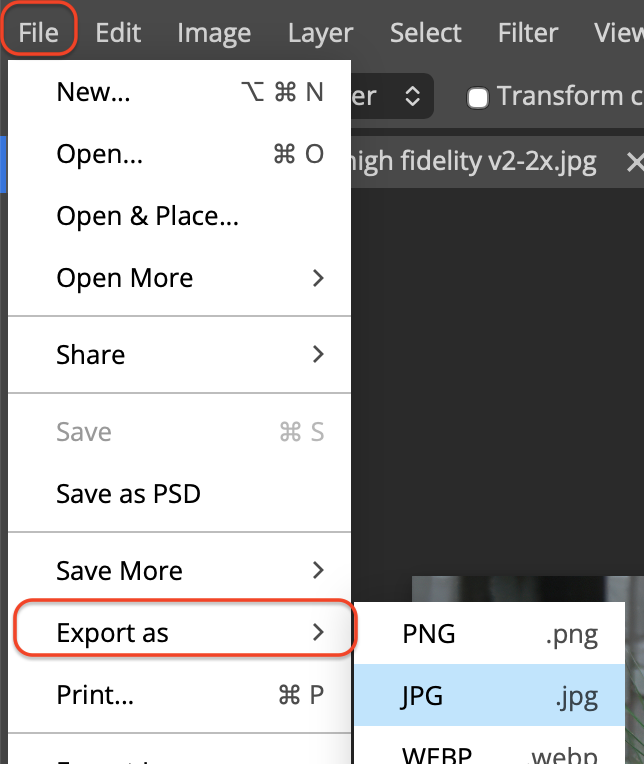
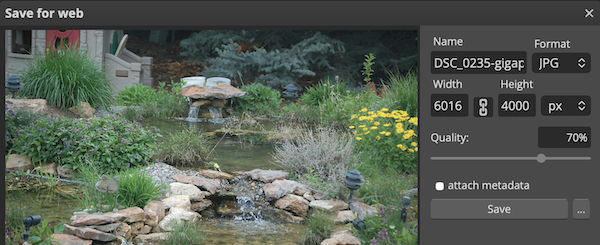
PhotoPea can be used to reduce the size of your image. With your image in PhotoPea, click on the “File” menu, then “Export As” and choose JPG as the image type. The dialog box will open up showing the image with the filename, its dimensions at 6016 pixels wide x 4000 pixels tall. There is also a “Quality” slider displayed.
There are two ways to reduce your image size. The first way is to reduce the dimensions. 6000 pixels across, when printed on a commercial printer at 300 dpi, would easily print to a 20” wide paper with great quality. A full discussion of this can be found HERE. Most of us do not need to have our image to be that large in dimensions. Even if we were to print to a 10” paper width, we would only need 3000 pixels in width. So why not change the width settings in the dialog box to 3000? The height settings will automatically adjust to around 2000 pixels. This is the best way to reduce image size.
The second way to reduce image size is to reduce the quality of the image by changing the slider from 100% to something less. The original image size for the one shown was 18.2mb. When I moved the slider to 90%, the resulting image size was 8.4mb. This is probably the easiest way to reduce file size, but you are squeezing some pixels out of the photo, thereby reducing the quality, depending on what percentage you choose.
Once you have chosen your settings, click on the “Save” button and your image will be saved to your Downloads folder.