Have you ever wanted to convert that old paper history of grandma Jones to a cleaned up scanned version that you can save on your computer or share with others? This is not a difficult feat to do. There are three basic ways to this. 1. Retype the Whole History If you are a very fast typer, this may actually be the easiest to do. Often, the copies of different histories have been handed down over several generations and each time the copy quality gets worse. These creates problems for "OCR" that we'll describe below. 2. Dictate the Whole History There will be some documents that are of such poor quality, having been copied from copies from copies, etc until even the original document looks almost unreadable. For these types of documents, OCR will not work for you. It is better to use the dictation software in your computer's native operating system. Both Windows 10 and MacOS have this ability. You will need a headset that has a microphone on it and dictate into a text document. If you enunciate your words clearly, your accuracy will be much higher; if not, then you will be making a lot of corrections. These types of headphones can be purchased for around $10. Once dictated into text, you can then format, make any spelling corrections, etc before saving the final document as a PDF file. For Windows users, you can find more information HERE on how to set up the speech recognition. Another Microsoft webpage that points you to the an article on how to use voice typing to talk instead of typing on your PC can be found HERE. For MacOS users, go to the System Preferences > Accessibility > Voice Control icon to set up dictation options for you. With each of these dictation options you are simply dictating into a "word processor" application, and you can then save your dictated/transcribed document as a PDF document. 3. Use "OCR" to Convert Your Document OCR stands for "Optical Character Recognition" meaning that sofware can scan through document images and recognize a certain image pattern as a distinct letter or number, which it then converts to an actual text character, just as if you had typed that letter on a keyboard. So for OCR to work well, the page needs to be in a typed format. It can not be handwritten, although there is some very sophisticated and expensive software that has emerged that allows a computer to recognize handwriting! If your original paper copies are in great shape, or in other words "clean", then the chance of a good OCR result are much greater. The conversion software works the best when there are not a lot of ink smearing letters together, hole punches in the paper, pencil comments that others may have put onto the page, and so forth. Make sure to use good scanner settings. The following scan suggestions assume that your page size is about 8.5" x 11". For black and white documents: scan to "Black & White image" and use at least 100 dpi. For documents that have greyscale photos in them: scan to "Greyscale" and use at least 200 dpi. For documents with color photos: Scan to "color" and use at least 200-300 dpi. "More dpi" is not always better. Scan a few pages and see how your images look before doing a full scan. You may find that your separate images are 5+ mb in size. Imagine scanning 40 pages of a history. The final PDF file size would basically be 200+ mb in size. WAY to big! The ideal PDF file sizes should be kept under 15mb. There are ways to shrink PDF file size, but sometimes with larger images, they don't work as well. If you only have access to a flatbed scanner, scan each page as a separate image with some type of filename that includes a page number at the beginning of the filename. An example might be: Mary's History-p1.jpeg, Mary's History-p2.jpeg, and so forth. This makes it easier to sequentially assemble all these single pages into a single PDF document. There are several free online places that will do this for you. One well known website is ILovePDF.com that can then assemble your separate images into a single PDF document for you. Here is the direct link to ILovePDF.com. There are other free online sites that you can view at this webpage. Please see online risks to online PDF converters. If you have access to a multipage document scanner, then simply insert the pages of your paper history into the scanner. If you don't have one but would like to try one, contact your local Family History Center, as many of them may have one to use. These scanners quickly scan the stack of histories and will combine all the pages into a single PDF document which can be shared easily through email, flash drives, etc. There are several options for OCR software that can convert your PDF document for you. Paid software versions can cost $100 or more, but will also have greater success at conversion. However, there are also many free options to try that do a pretty good job if your original paper documents were in good shape. ILovePDF.com is one option to look at. You just need to upload your file to their webpage, and the site will do the conversion. When completed, you can download the resulting text document. There will likely be some need to reformat and correct word spellings, again depending on the quality of your scanned document. Microsoft Word and LibreOffice Word will also import and attempt to do OCR on your PDF as well. If you have a Google account, you can upload your unconverted PDF document to Google Drive, Right-Click on the filename and then select the menu option of "Open with Google Docs". Google will convert the file into a text for you pretty well. You will have to do some formatting, letter corrections, etc, before saving that document to a final PDF document. One thing to note about OCR conversions. Sometimes the photo images are not displayed well in the converted document, or at all. The higher quality OCR software does a much better job at trying to retain the original look and format to the document, such as with columns, tabs, etc. You may decide that the photos that were in the original document are not that great of quality and just remove them. You may also decide that you have other better photos to insert into the document instead.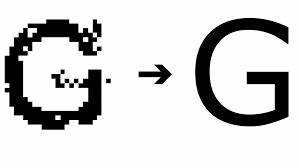
Paper Histories
By Stephen A Meyers
Preserve Great Copies of Your Ancestral Histories