Backup Strategies to Protect Your Data

Have you ever lost any or all of your computer files? I can tell you from experience that it is a gut sickening experience. All it takes is a sudden hard drive failure to lose everything, even with a brand new computer. I had a top of the line HP business desktop that suffered a hard drive failure less than one month after purchase. Luckily I had already learned to create backups.

A great majority of us tend to procrastinate this backup process. All computer devices will fail eventually, some much sooner than others. Even backup storage devices will wear out. Consider replacing these every few years or so.

How Do I Begin?

First, your files NEED to be ORGANIZED! However, if they are not yet organized, go ahead and make a backup copy, and then continue to organize your files. You don’t want to wait until the end to backup your files and risk losing all your current files.

Use the Windows/MacOS User Profile Folders to Help Organize

Keep your data files within the Windows or MacOS User Profile folders (Pictures or Documents). Too many times I have seen patron’s hard drives with files strewn all over their hard drive and even inside the Windows Operating System folder (ex: C:/Windows/System32/xxxx). Your files should NEVER be kept in the Operating Systems’ "root folder”, like C:/MyPhotos or C:/MyDocuments, and so on.

How can you ensure that all your data files are going to be included in your backups if you are not sure where they all are located? Centralizing your data files is a key point to remember.

What if you have kept all your scanned files on multiple USB flash devices?

For help with image and document organization, explore helps below. If you need any help, contact me using the link below.

Develop a Backup Strategy

Learn About the "3-2-1 Backup” Strategy Plan

Keep at Least 3 COPIES of Your Files

  • The first copy (the original) is on your personal computer.
  • The second copy of your data files is a backup copy and should be stored on a local USB hard drive, preferably connected to your computer so that it can be making daily (or at least weekly) backups of any file changes.
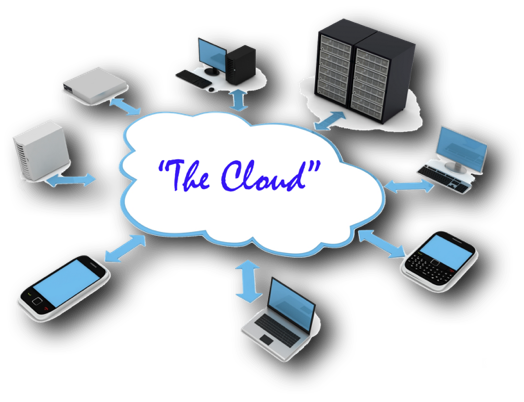
  • The third copy could be a second local USB hard drive storing your backup, or using a “cloud drive” to store your backups.

An important note … do NOT store backups on your same computer, such as just copying a folder and then pasting it onto your hard drive. This just creates duplicates and headaches in the future. Believe me, this option happens! You are not really making a backup copy of your data by just duplicating it and storing on a storage device that will fail.

Use at least 2 DIFFERENT devices to store your files

As a minimum, your computer’s hard drive and a USB hard drive would be considered two different devices. Be sure that you are NOT STORING your files on USB Flash Drives nor SD Cards. Click for more information about these type of devices.

Keep at least 1 OFFSITE copy of your files

With all the devasting floods and fires around the country, home thefts, and more, it is easy to realize that our homes are no longer a safe place to store local backups. I can't imagine losing my collection of digitized photos that comprise more than 45,000+ photos of our family over almost 50 married years. And then, there are the several thousand digitized ancestral photos & documents to consider as well. All that work, and in a matter of seconds, they can all be gone.

This is where “offsite" comes into your backup strategy. Your files could be backed up to a local USB hard drive and then stored “off-site”, such as at a family member’s home. I used to back up all my files onto an extra USB hard drive and take them to my son's home when we went on vacation. This was in the days before "cloud" based options were available. This strategy may not have worked in a situation of major flooding or devastating fires, as he lived fairly nearby. Offsite should be far offsite, like on a server (with their redundant backups), in a place away from local dangers. "Cloud backups" should be an essential part of your backup strategy.

What Are My Backup Options?

#1) - Computer & 1 USB Hard Drive - NO Cloud For Offsite Storage

This strategy uses only your computer and a local portable USB hard drive. There is no cloud drive. The USB hard drive would run backups nightly and would be constantly connected to your computer. This is a bare minimum setup. It would be very unusual to have both your computer’s hard drive and the USB hard drive go bad at the same time. However, think about the possibilities of flood, theft of your equipment, fire or other disastrous consequences. By NOT having an offsite option would result in losing all your precious files.

Having cloud storage can be extremely helpful in keeping one copy of your files “offsite” such as having a cloud drive option. However if you do not have that option, then consider using an additional 2nd USB hard drive to back your files up routinely. This USB hard drive could then be given to a friend or family member to hang onto. Just remember to borrow the drive back each time to make your (at least) weekly backups. At least you will have one of your data drives “off-site".

Cons: Having to handoff and recollect your hard drive weekly to make additional backuup changes. Also, time can pass quickly before you remember to create another backup to that drive. Just don't forget how important all those photos and documents that you have collected are!

#2) - Computer & 1 USB Hard Drive & Cloud For Offsite Storage

Option #1 For Cloud Storage
Use as a File Synchronization Service

This the probably the most common strategy for file backups in the personal home setting.

When you create a new file, modify an existing one, or delete a file that is in this folder, those same changes will occur on your cloud drive. If you have another laptop, phone, or tablet that is synchronizing with this cloud drive, those same changes will then occur on the other devices as well.

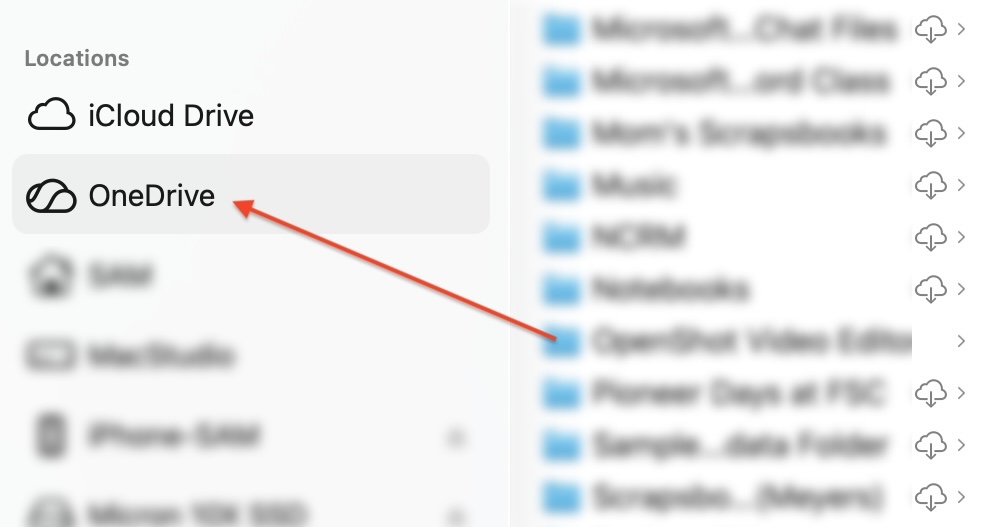
When the cloud app is installed on your computer, it creates what looks like a new folder on your computer (shown below). Anything that is moved into this folder will be synchronized with the cloud drive. Also note the small down arrows inside of a cloud icon. This represents files that are in OneDrive, but are NOT kept on my computer’s hard drive. I personally use iCloud for all the files I want to sync across multiple devices. In this case, OneDrive is a backup storage device only. However, OneDrive is more commonly used as a file synchronization service.

This type of strategy can work well, particularly if you have good solid USB hard drive backup. If you computer's hard drive goes bad, you can restore your files from that drive, or download the files from your cloud drive as well.

Just remember that you can NOT use the "cloud drive" as your principal backup storage. If you accidentally delete a folder and don't realize it, that folder is basically gone. There is a 30 day window where you could restore that folder from the cloud trash bin, but after that the folder of files is gone.

Having your files stored offsite is quite helpful if you have somehow lost access to your computer and your backup drive in cases of floods, theft, fire, and so forth. Again, just realize that a file synchronization service is NOT a true backup service.

Option #2 For Cloud Storage
Use as a SEPARATE Storage Backup

Another option with available cloud storage is to NOT use the file synchronization service, but to use it as a target backup device, just like your local portable USB hard drive.

Create a backup folder on your cloud drive, like “My Backups". Next, set your backup software (discussed below) to use that folder as your target backup device. There is one issue with this. You will have duplicated your local computer’s files into the synchronized backup folder as well. The “cloud service” is doing what it is supposed to do .. synchronize! You don’t really want a duplication of your files taking up your hard drive’s space.

Most cloud providers allow you to keep your folder or files only in the cloud and not downloaded on your computer. This greatly saves your hard drive space. There are different icons after the file or folder labels that tell you the status of where these are stored.

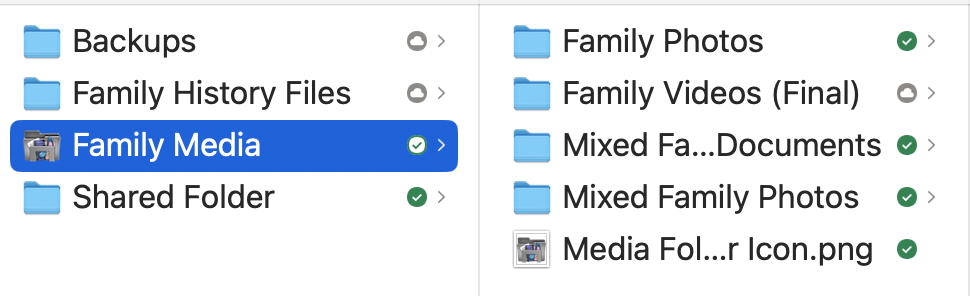
Let's use Dropbox as a cloud provider example, but most of the other cloud services have similar status icons. In the image below, you will see small icons to the right of the folder name. The grey circle with the cloud in the center mean that all the files in the folder have been uploaded and are ONLY available online. This means that they are not taking up any computer hard drive space. They can still be downloded from the cloud drive. Every time your backup software runs the files/folders will still be synchronized to the cloud only.

The Family Media folder below has a mixture of some downloaded and folders that are only online (or in the cloud as seen by the white circle with a green check mark in it). The solid green icon with a white checkmark means that these folders and files in them are synchronized, residing both on your computer and in the cloud.

With this Option #2, you then have TWO backup devices (local USB drive & cloud drive) that will keep track of all your files and even those that are deleted. If you need to go back to one of these backups and restore files, they are still available to you. The negatives with this option? None really, except that you are not using the file synchronization option across multiple devices.

But ... see Option 3

Option #3 For Cloud Storage
Use For BOTH Storage Backup AND File Synchronization

Cloud Sync Storage

+

Why not think about using your cloud drive as BOTH a file synchronization service and as a separate backup drive? It can be set up as such using the cloud software app that comes with your cloud service. Consider this option below.

You may need a lot of cloud storage if you have a lot of computer files. If cloud drive space (cost) is not an issue, then this option will work for you. You will be duplicating your data files in the cloud by using this method, however you can get the best of both worlds.

If you have 1,000 gigabytes (or 1 terabyte) of cloud storage, and have 300 gb of local hard drive data, you will be filling that cloud storage space with at least 600gb. (300 gb of local data + 300+ gb of backups). Actually over time, your backup size will begin to use more drive space because you will be archiving files that you have deleted (in case you ever wanted to restore them). So, if you do have more data then say 200 - 300 gb, you will want to ensure that your cloud drive storage is larger than 1,000gb (or 1 terabyte).

To set up cloud synchronization, simply drop your data folders into your cloud drive folder. These data folders will synchronize between your computer and the cloud drive.

To set up a data backup folder, create a folder like “Backups”, “My Computer Backups”, or such in your cloud drive folder. You will then direct your backup software to send all the backup files into this target folder. Because you don’t want to have duplicate files on your computer’s hard drive, you will want to choose the cloud option of storing these backup files only in your cloud drive, and not on the computer. You will not need to access to this folder unless you need to restore files. It's basically a folder that you will see, but not have to fiddle with.

Some Thoughts to Consider

FAQs

Backup Software Applications

Windows Applications

Unfortunately there are no good backup apps built into the Windows operating system that will create backup sets. There is a legacy backup app called “File History” in Windows 11, but it is difficult to set up. It was also not a true backup app as it only synchronized files. Another Windows backup utility called "System Image” will create a snapshot of EVERYTHING on your computer and write that backup to whatever target device you select. This backup option is great for a different purpose, but not the one we are focusing on, which is just backing up your data files. Microsoft encourages you to use OneDrive that they tout as a “Backup & Restore” tool. It is however, not a true backup but a sync service.

There are a host of software vendors that you can web search for that have listings of good software backup apps. Acronis, iDrive, Carbonite, and others have good reputations.

BackBlaze is one that I use as well. I just set the BackBlaze software up and it constantly backs up the changes on my local hard drive and also any connected USB hard drives to their cloud. They also have unlimited cloud storage space. It runs in the background and I never have to worry about if the service stops. It will notify me by email if my computer is not longer synchronizing to their server. If you ever need to restored files, you can either download them as a whole or individually. If you have terabytes worth of data, then you have the option of having the company send your files on a USB hard drive as well. BackBlaze (both Windows and MacOS) just runs in the background and I forget that I have it, other than the monthly statistics reports they email to me.

Apple MacOS Applications

I am a Mac user and have a few other options that help me to backup files. The Apple operating system has "Time Machine" that you can setup a target USB hard drive and it automates everything. I like Time Machine and use it when a file or files are corrupted or I need a previous version of a file that may have pieces of information I need again. I can go back 1 day, 1 week, 1 month, and so on, and restore the information that was lost very easily.

I also use an app called Carbon Copy Cloner that allows me to create "tasks" or small backup sets containing only the folders that I want to backup within each task. I often have 5 or more tasks that I can create and run at different frequency intervals and send them to different USB hard drives, or as I use, solid state drives. There are other more complex options that I can do with the software as well.

There are other software vendors for Apple Mac systems as noted in the Windows section. Remember that these types of backup sofware can be used to create local and cloud drive backups. You will need to factor in the cost of a cloud drive service that will host your data file backups off-site It's worth it to help prevent the anxiety of data loss.

How Do Backups Work?

There are several different types of backups. There are pros and cons with each type. Without getting too technical and describing each, just know that there is a FULL backup, or one where all the files are copied to a backup drive at the same time. To avoid having to copy all the files over each time you back up your data, two other common types of backup types were created. The incremental and differential backups only back up the files that were added, deleted, or changed since the last full backup, but they do it in a different way.

The incremental backcup is the most common type used, however it can be more difficult and slower to restore your files. Whatever software you purchase, be sure you know how the software works. Create a small backup and then first try to restore a file or two, and then all of the files from the backup set. Once you are comfortable with the restoration process, create a complete backup set.

Most software allows you to select which files you want to backup. This allows you to create not just one big backup of all your files, but multiple smaller backup sets. For example, if you wanted to just backup your family photos, you could create a “Family Photos” backup and have it run weekly. For more active family history files that you access and add to daily, you could have a backup set called “Research Files” that just backs up those folders daily. You are not limited to just one big backup. I have probably 15 different backup sets. These different backup sets may go to different hard drives, to a cloud drive, and so forth. This does help in not having to have one HUGE hard drive, but can split these different backup sets to smaller target hard drives. I also do create full backup sets, which go to 2 different hard drives as additional "insurance against loss".

One more backup type that I should mention is to just copy, let’s say your family photos folder, to a different hard drive and then label that new folder something like “202605 - Family Photos”. You would then just leave this folder alone, no adding to, deleting files, and such. Why would I want to do this? Situations arise where a file may become corrupted on your computer and then can’t be opened. This corrupt file will then be backed up each day or week. You discover one day, months or longer down the road, that a certain ancestor’s PDF file won’t open. You go back to your routine backups, restore the file and still find the same thing. This is the exact reason you keep these periodic backups. You go to your backup set from 202605, let’s say, and that same file is still corrupted. The next step would be to go to your 202511 backup set and try to open the file. As luck has it, that copy opens. You now copy that good file to your computer’s hard drive and get rid of the corrupted one. Your new subsequent routine backups will of course copy this new file to your backup drive. Probably making a full backup set of your files every 6 months is adequate. Of course, this means that you will need another large hard drive to fit all these backups on.


Data Caps & Bandwidth Are Important to Consider

When we talk about utilizing the internet to backup files, there are two terms that are important to understand.

  • Monthly Data Allowance - If you have upwards of 500-600 gigabytes on your hard drive that you need to backup, you may find yourself running up against your Internet Provider’s data allowance for your internet plan. You may need to go up to the next tier so as to not be charged for overages on your use.
  • Bandwidth - Think of this as the number of highway traffic lanes and how much information can flow at a single moment. If you have a lot of files you are working on for example, you may find your computer slows down, especially when the applications are constantly trying to access internet files. If you are trying to backup big movie files, these will use a lot of bandwidth and your access to the internet will slow down considerably

I understand that not everyone will be able to afford internet plans that will allow you to have enough data allowance each month for data file backups. For most users, they do not typically need to be concerned about this issue.

Bandwidth issues typically come with older hardware that is required to make a connection to the internet. Again though, most users will not experience concerns in this area where they don’t have tons of files to try to keep backed up.

Explore Information About Cloud Drives

This is a lot of information to cram into this webpage. If you have questions though, please contact me using the link below. I can help get you started with this very important task.

Contact Me
Missionary Communications Board

© 2026 Stephen A Meyers, All Rights Reserved.

FamilyDiscoveries Menu